
Home examinations
-
Try out WISEflow before your exam
The demo flows in WISEflow help you prepare for your exam by letting you try different types of exams and get familiar with the system before the actual exam. You can log in and complete demo exams at any time — as many times as you like:
- Close all other programs.
- We recommend using the latest versions of Google Chrome, Mozilla Firefox, or Safari when working in WISEflow.
- Log in to WISEflow (wiseflow.net).
- Click on “Demo flows” at the bottom of the main page (“Overview”) and try out all available exam types.
Types of exams in the demo flows
- FLOWmulti and FLOWlock exams – Try how essay and other task types work.
- FLOWAssign – Home exams where you upload written material (PDF files).
- FLOWHandin – Home exams where you can upload written material (PDF files) or other types of work, such as video or audio files.
Other tips
-
Practice how to take photos in FLOWlock – you must have the LockDown browser installed (help.wiseflow.net).
-
Practice converting files from Word to PDF for online use (support.microsoft.com).
-
Read the step-by-step guide on how to upload PDF files in WISEflow (help.wiseflow.net).
-
Your password for WISEflow and browser recommendations
- You log in to WISEflow using your regular OsloMet account via FEIDE.
- Forgot or need to change your password?
- We recommend using the two latest versions of Google Chrome, Mozilla Firefox, or Safari when working in WISEflow.
- Installation of Lockdown-browser (help.wiseflow.net)
- Do not use an iPad to submit home exams in WISEflow.
-
Upload and submit your home exam as a group or individually in WISEflow
- Convert your submission from Word to PDF for online use (support.microsoft.com).
- Upload your submission and click “Submit”.
- Please note that your submission is not automatically delivered when the time runs out — you must click “Submit” yourself.
- You can withdraw and re-submit your exam as long as the deadline has not passed.
- If you want a receipt for your submission, click “Send receipt”. You can also check your submission status to see the time of submission.
- Useful guide from WISEflow: Submitting a home assignment (help.wiseflow.net).
Predefined groups
In some courses, groups may be predefined in WISEflow. In such cases, you will automatically be assigned to a group and do not need to create your own group or invite group members.
Groups you create yorself: single-person group (group) – individual submission
- If individual submissions are allowed in addition to group submissions, select “Create one-person group.”
- Enter a group name (for example: “Group 1”), but don´t use your own name.
Groups you create yourself: groups with multiple members
- One group member creates the group.
- Enter a group name (for example: “Group 1”), but don´t use your own name.
- Invite participants by searching for their names. Only students registered for the exam can be found in the search.
- Click “Create group” in WISEflow.
Confirming group invitations
- Group members will receive an invitation that must be accepted.
- Accept the invitation by clicking “Execute” in the WISEflow dialog box.
Submitting the group’s answer
- When all invitations have been accepted, the submission can be delivered.
- If you are invited to a group but do not accept the invitation, the exam will not be submitted for the group.
- Only one shared submission is delivered on behalf of the entire group. Any member of the group can submit — not just the person who created the group.
- It is not possible to add new members after the submission has been delivered.
- You cannot be a member of more than one group in an exam.
- Remember: you must always click “Submit”!
Submission receipt
- In the submission status view, you can see the time of submission.
- To receive a submission receipt, click “Send receipt.”
- Each group member must send their own receipt if everyone wants a copy.
-
Submission deadline, candidate number and delete metadata (author information)
- You will find the date and time for the release of the assignment and the submission deadline in Studentweb (https://fsweb.no).
- Normally you shall not write your name on the assignment for anonymity reasons.
- Write your candidate number on your assignment. You will find your candidate number in Studentweb (https://fsweb.no).
-
To ensure your anonymity, you should also delete metadata (author information) from the files your are submitting. Here are guidelines on how you delete metadata from Word and PDF files. Delete metadata in Office – in Norwegian only.
-
If you use Inspera - individual and group assignment
Log on to Inspera with your OsloMet username and password (Feide)
You can change the language in Inspera in the top right corner (after you are logged in).
- See a guidance film about how to submit a home exam (filmet.oslomet.no).
- Is it a group assignment? See the user guidance for how to create and join existing groups without password in Inspera (PDF, opens in a new tab).
- How to convert files from word to PDF (support.microsoft.com).
Submit your assignment
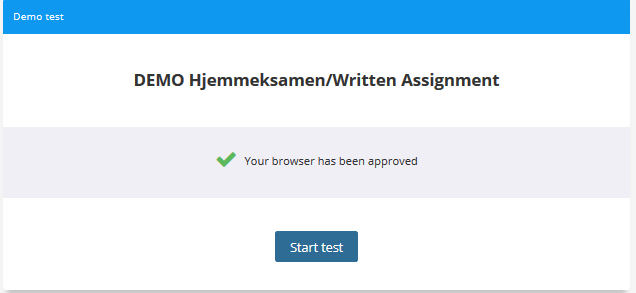
1) Click on "Start test"
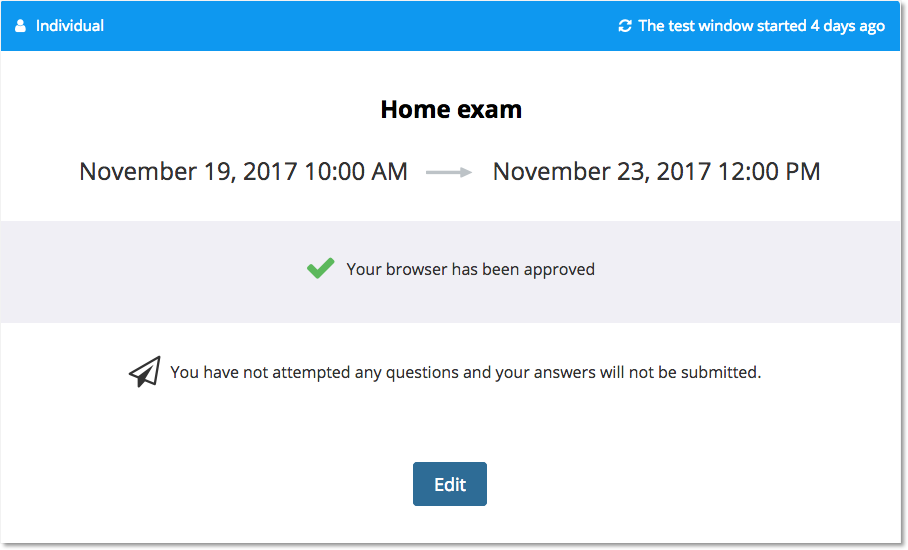
2) Click on "Edit" to open the test.
3) Information page
The exam administration at your faculty will often give important information on the front page. Read the information before you submit!
4) Upload your assignment
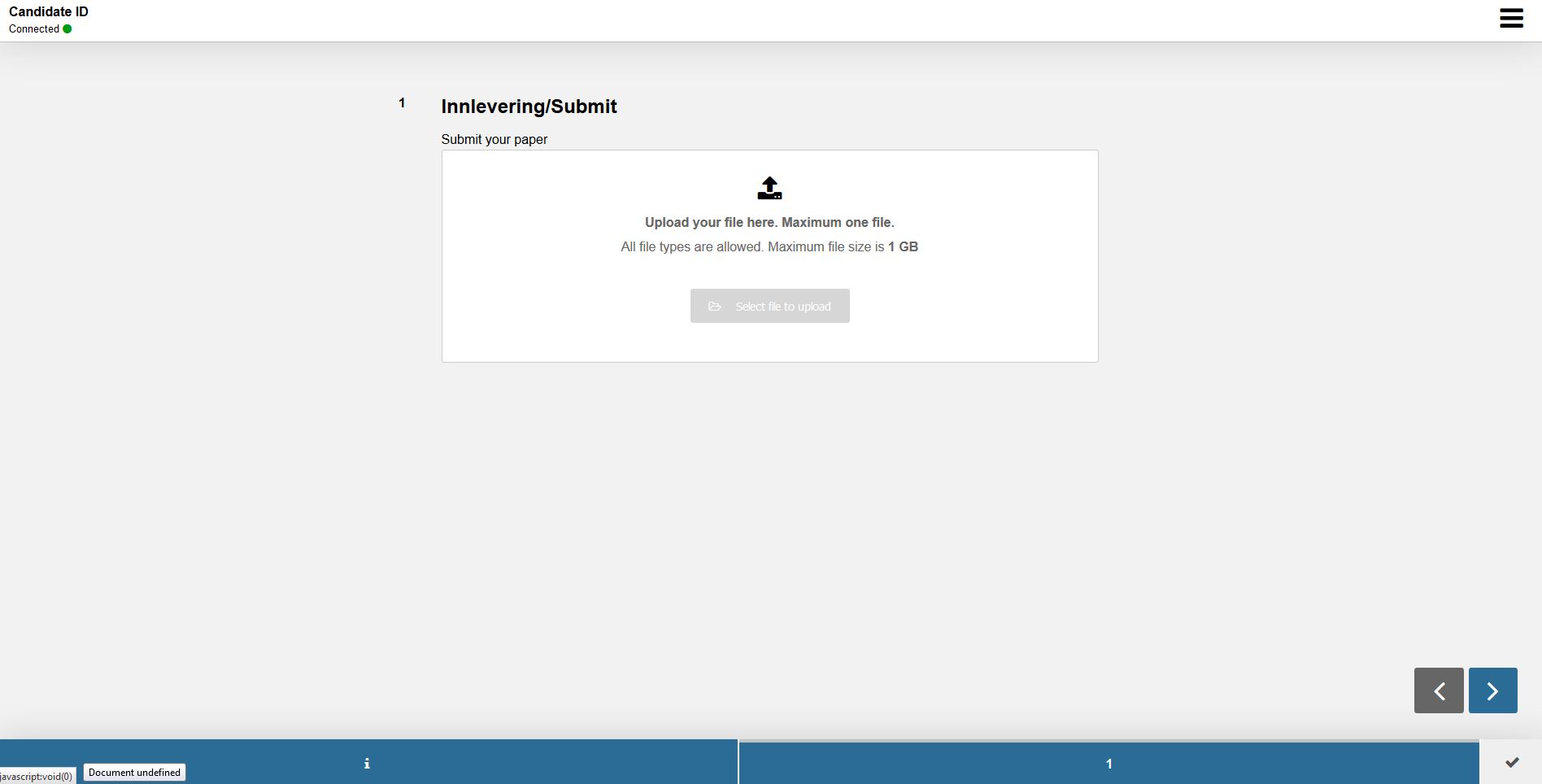
You can only upload one file. You will be informed if any particular format is required, often PDF.
-
Click Select file to upload - and browse
-
Choose the correct file
-
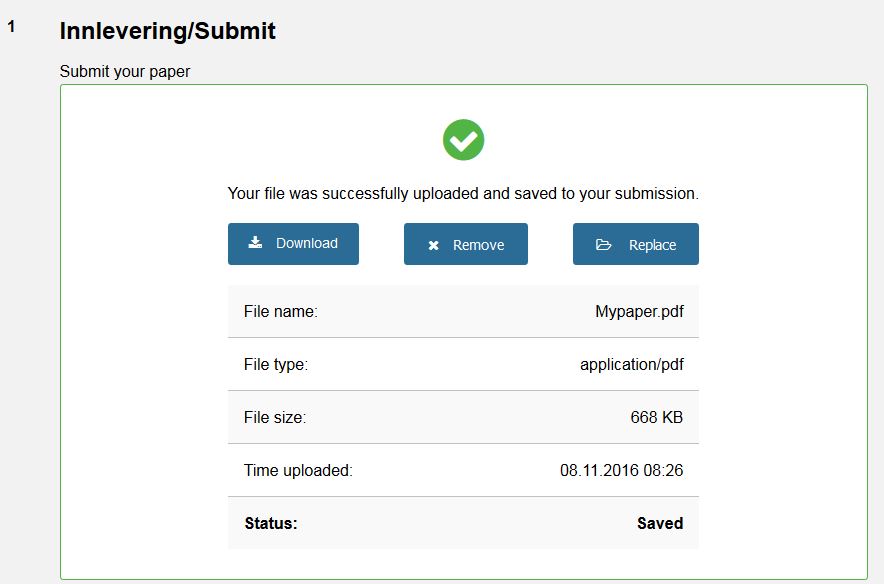
Make sure the upload is successful.
-
You can replace the chosen file - Replace
-
You can download your file to get a preview - Download
5) Submit you assignment
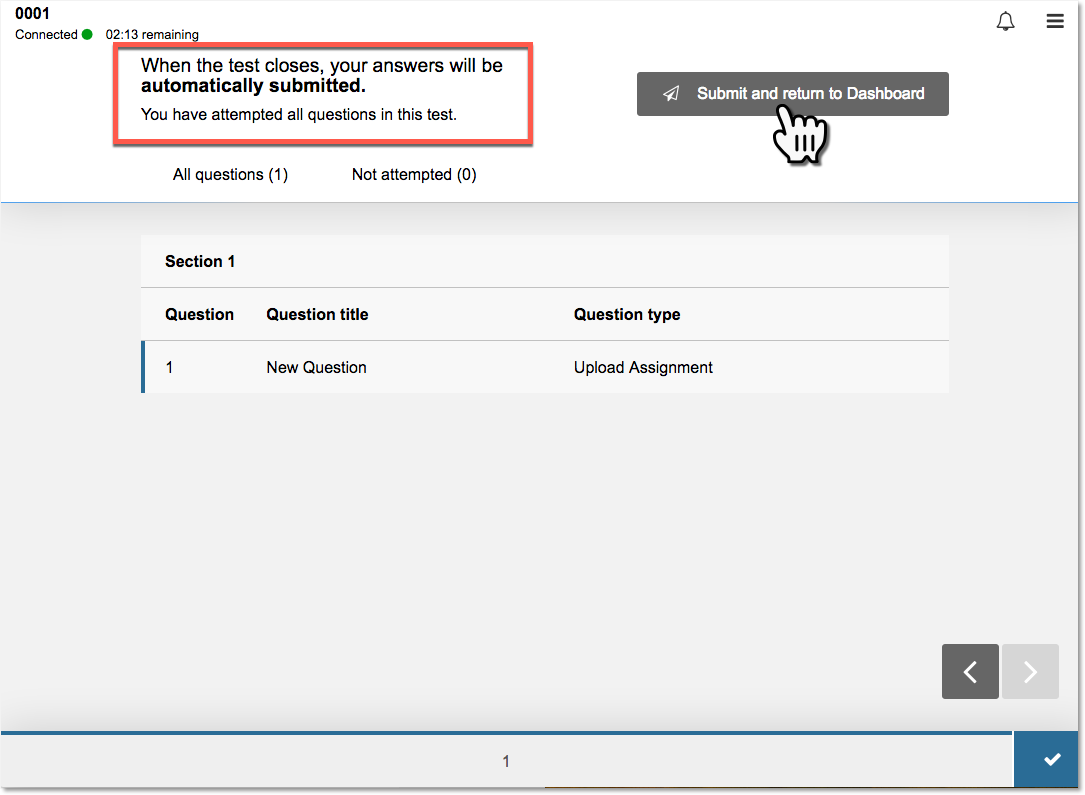
When your exam is uploaded you will get the following confirmation.
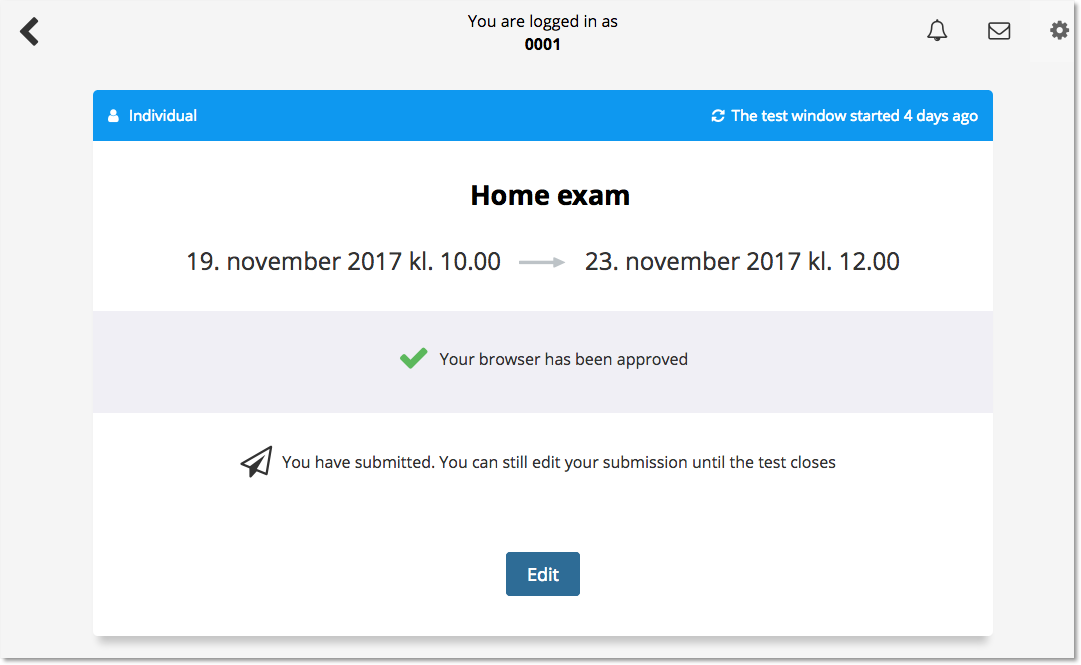
After the deadline you will see your receipt for submission under archive.
-
Procedures for unforeseen events
- You must ensure that you have up-to-date/functioning PC equipment and internet access.
- In the event of power outages, problems with internet access, fire alarms etc. that prevent you from delivering your answer, you must get a confirmation of this from the internet provider, landlord/housing association, etc. that confirms what has happened. Confirmation must be sent to your faculty no later than one week after the exam day. It will then be up to your faculty to decide whether you will be entitled to a new/postponed exam in the current subject.
- Extended time will not be given as compensation for lost exam time due to technical problems with own equipment/network access or similar incidents.
- If something completely extraordinary happens during the examination and you cannot submit your answer because of this, contact the study administration at your faculty.
-
Contact
Also check additional information under your faculty. If you cannot find additional information for your course or your faculty, joint examination information applies.
- Exams at the Faculty of Social Sciences
- Exams at the Faculty of Health Sciences (Norwegian only)
- Exams the the Faculty of Education and International Studies
- Exams at the Faculty of Technology, Art and Design (Norwegian only)
- Contact your faculty.